





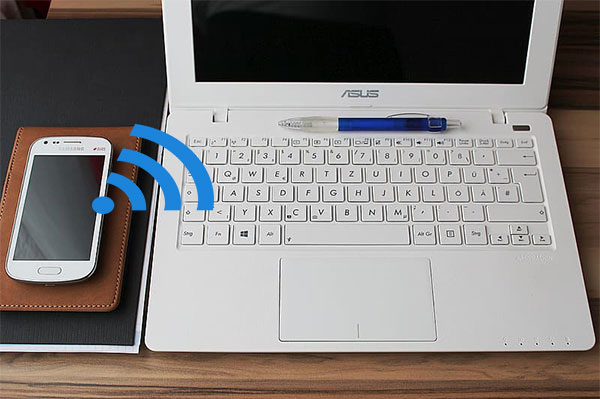
Setting up a Wi-Fi FTP server on Android allows you to access and transfer files between your phone and computer without using a USB cable. This method is fast, wireless, and convenient, especially when both devices are on the same network.
In this guide, you’ll learn how to turn your Android phone into an FTP server and connect to it from a Windows PC using File Explorer or an FTP client like FileZilla.
What is a Wi-Fi FTP Server on android?
A Wi-Fi FTP server on Android lets your phone share files over a local wireless network. Your phone acts as the server, while your computer becomes the client. Once connected, you can browse folders, upload files, and download content easily.
Requirements before you start
- An Android smartphone
- A stable Wi-Fi connection
- A Windows computer
- An FTP server app such as WiFi FTP Server
- Optional: An FTP client like FileZilla
How to Set Up a Wi-Fi FTP Server on Android
Step 1: Download an FTP Server app
Install WiFi FTP Server from the Google Play Store. Other FTP server apps also work, but this one is simple and reliable.
Step 2: Connect both devices to the same Wi-Fi
Make sure your Android phone and computer are connected to the same local Wi-Fi network. FTP will not work across different networks.
Step 3: Start the FTP Server
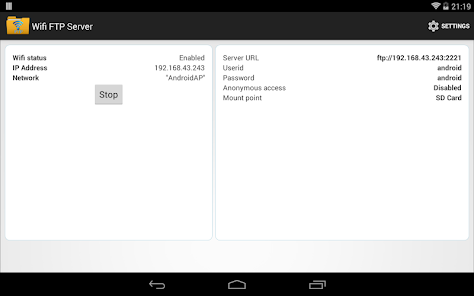
Open the app and tap Start Server.
The app will display a server address such as: ftp://192.168.1.5:2221
This address is required to connect from your computer.
Step 4: Set username and password (Recommended)
For better security, open the app settings and set a username and password. Avoid anonymous access, especially on shared networks.
How to access your android FTP Server from a windows PC
Method 1: Using windows file explorer
- Open File Explorer
- Right-click This PC
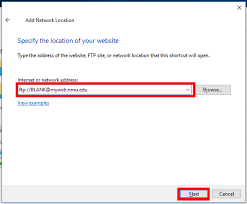
- Select Add a network location
- Enter the FTP address from your phone
- Log in using your FTP username and password
- Click Finish
Your phone will appear as a network location. You can now drag and drop files.
Method 2: Using an FTP client (FileZilla)
- Open FileZilla
- Enter the following details:
- Host: Phone IP address
- Username: FTP username
- Password: FTP password
- Port: 2221 (or the port shown in the app)
- Click Quickconnect
Once connected, you can manage files easily.
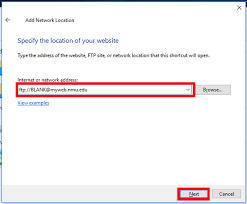
When finished, stop the FTP server
After transferring files, open the FTP app on your phone and tap Stop Server. This saves battery life and protects your device from unauthorized access.
Using a Wi-Fi FTP server on Android is one of the easiest ways to transfer files wirelessly. With the right setup, you can access your phone storage from a PC in minutes. This method is secure, efficient, and perfect for everyday file sharing.
Related posts:
 First Wheelchair User Reaches Space in Historic Mission
 Tesla’s Game-Changing Pi Phone Is Almost Here — Everything CEOs & Innovators Should Know
 Artificial Intelligence in Rwanda: How It Is Transforming Everyday Life
 Airtel Africa Partners With SpaceX to Expand Satellite Internet Across Africa
 Google Launches Live Translation Feature for Real-Time Multilingual Conversations
 You must have these 5 apps in your phone 2025
 iPhone 17 Pro: What You Need to Know about iPhone 17 Pro
 AI Tutors Reshape the Future of Education
 NSO Group Banned from Targeting WhatsApp Users Again
 Understanding How a Computer Really Works
 Rwanda: Small and Medium Enterprises Unlocking New Opportunities Through Technology
 Security Alert: Google Subpoena Scam Targets Users with Sophisticated Phishing Tactics
 The Most Expensive Phone in the World: A Glimpse Into Ultimate Luxury
 SpaceX Provides Free Starlink Access During Natural Disasters
 X Launches “About This Account” Feature to Boost Transparency and Fight Fake Profiles
 Nvidia Invests $1B in Nokia to Boost AI-Driven 6G
 China’s 16-Ton Jiutian Drone Completes Historic First Flight
 Rwanda Coding Academy (RCA) to Expand Across the Country to Boost Rwanda’s Tech Ambitions
 Scientists Discover Massive Mysterious Rock Beneath the Bermuda Triangle
 How Close Is Rwanda to Becoming Africa’s FinTech Innovation Center?
Dịch vụ chăm sóc khách hàng của 188V hoạt động 24/7 qua nhiều kênh: live chat, Zalo, Telegram và hotline tiếng Việt. Đội ngũ CSKH được đào tạo bài bản, phản hồi nhanh và giải quyết tận gốc vấn đề. TONY01-29H